Messaging Platforms
There are three messaging platforms you can use to send individual messages to students and teachers from their cards in your SchoolMate account. They are:
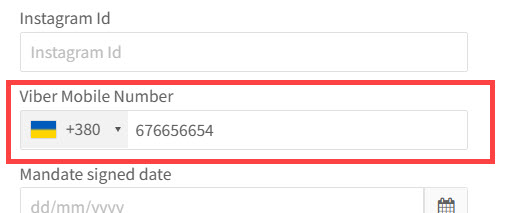
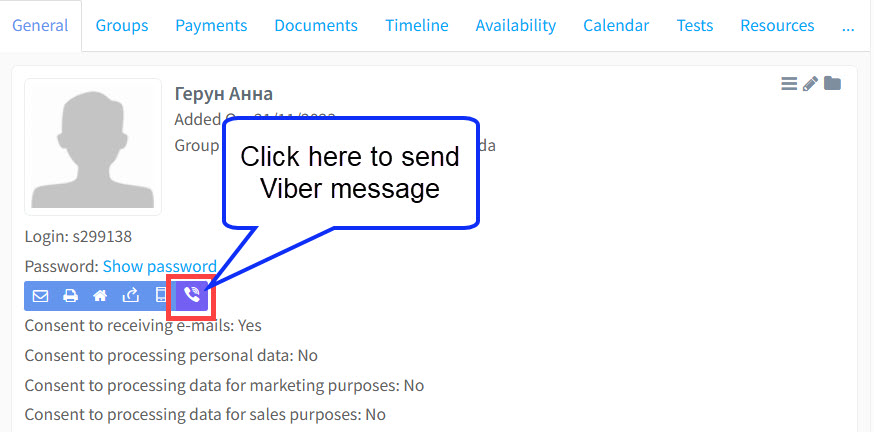
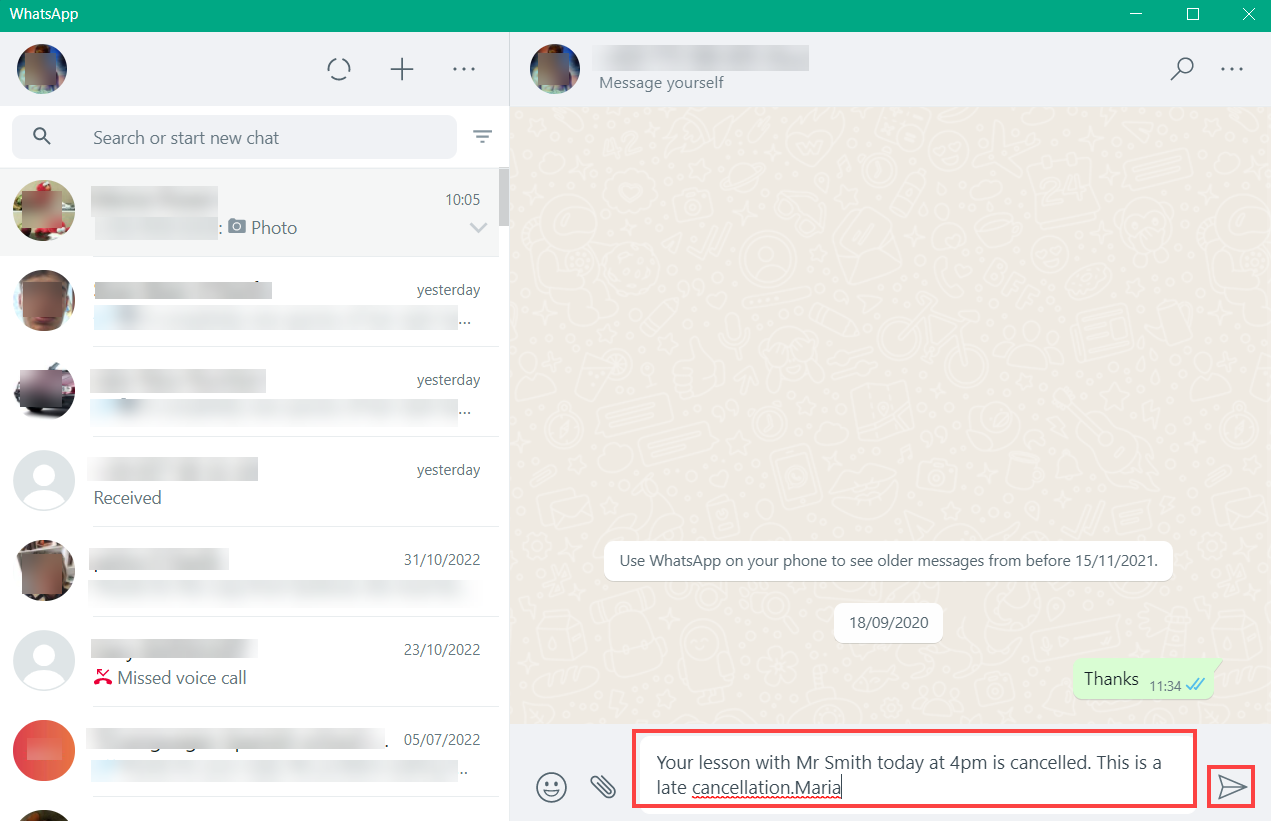
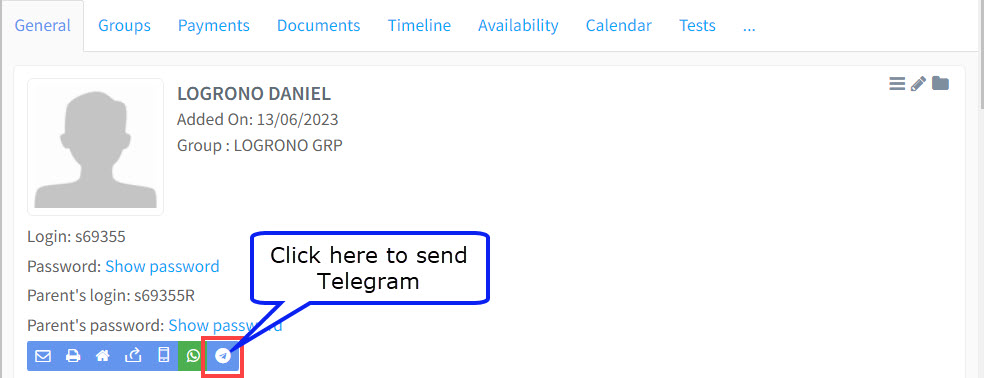
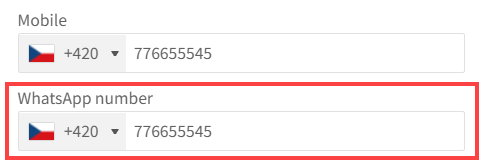
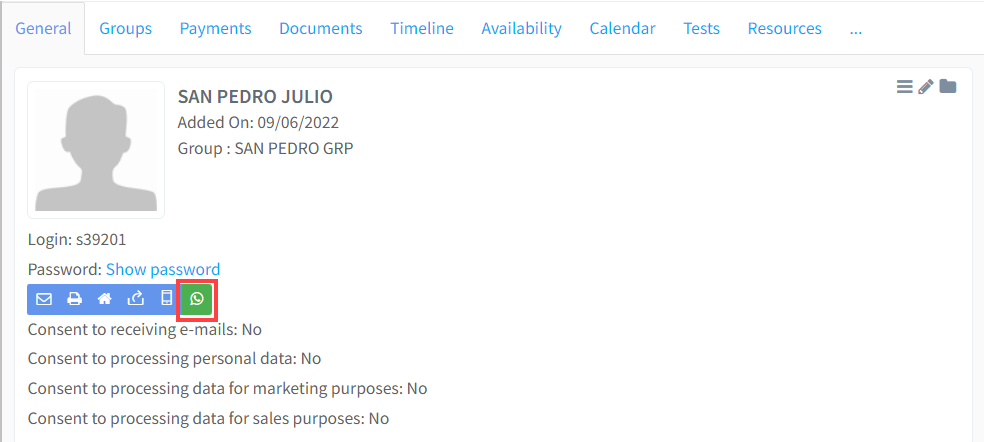
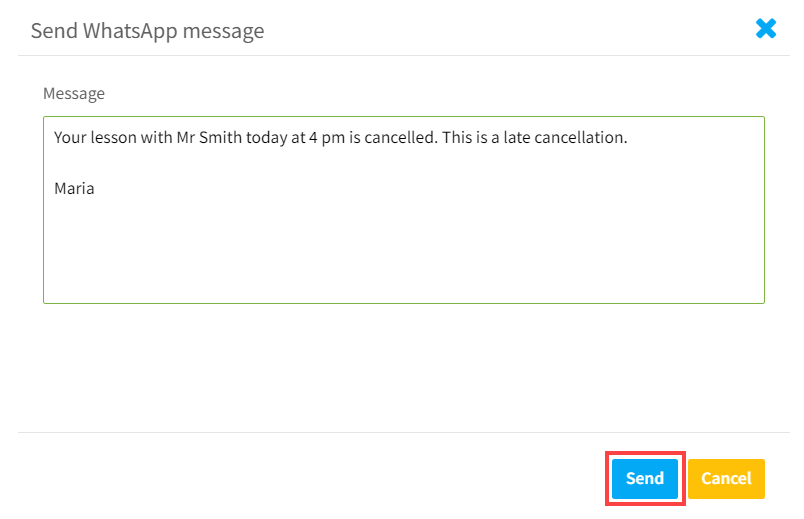
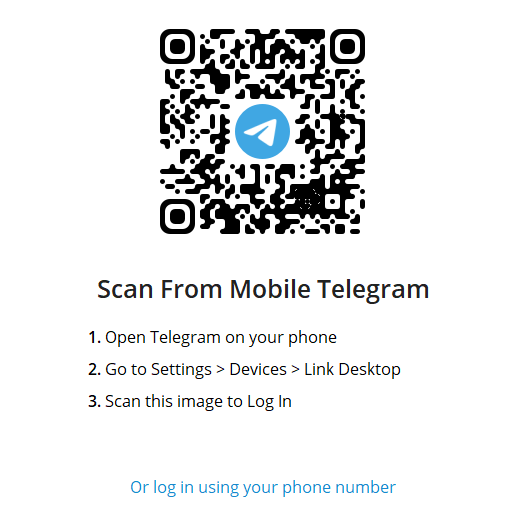
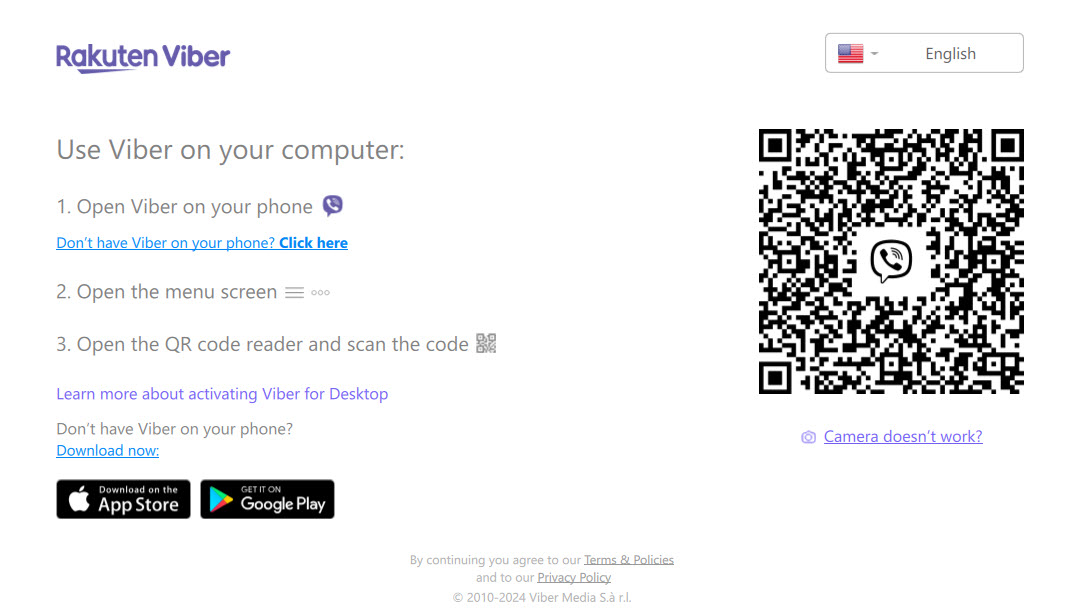
You will need to create a WhatsApp account on your mobile phone which you can then link to your laptop. You can download WhatsApp from Google Play and Apple Store. When you have installed the App on your mobile phone you need to download WhatsApp to your computer. Open the browser on your laptop and go to: https://www.whatsapp.com/download and click the type of computer you have – Windows or Mac – and download the files. Once the download is complete, open the .exe or .dmg file and follow the prompts to complete the installation. Your laptop will now sync with your mobile phone. On the student, student prospect and teacher basic information cards there is a space for their WhatsApp number: When that number is filled in a WhatsApp button will appear on their general information card: To send a message, click on the WhatsApp button. Enter the message into the form and click Send. This will take you through to your WhatsApp account and you can click to send the message. You will need to create a Telegram account on your mobile phone which you can then link to your laptop. You can download Telegram from Google Play and Apple Store. When you have installed the App on your mobile phone you need to download Telegram to your computer. Open the browser on your laptop and go to: https://desktop.telegram.org/ and click the type of computer you have – Windows or Mac – and download the files. Once the download is complete, open the .exe or .dmg file and follow the prompts to complete the installation. Your laptop will now sync with your mobile phone. Telegram messages can be sent to students, student prospects and teachers. Their Telegram ID is stored on their respective cards in SchoolMate. Here is an example from the bottom of the students’ basic information card where their Telegram ID is stored: You will need to create a Viber account on your mobile phone which you can then link to your laptop. You can download Viber from Google Play and Apple Store. When you have installed the App on your mobile phone you need to download Viber to your computer. Open the browser on your laptop and go to: https://www.viber.com/en/download/ and click the type of computer you have – Windows or Mac – and download the files. Once the download is complete, open the .exe or .dmg file and follow the prompts to complete the installation. Once downloaded and installed, follow the instructions on your laptop: Your laptop will now sync with your mobile phone. Viber messages can be sent to students, student prospects and teachers. Their Viber number is stored on their respective cards in SchoolMate. Here is an example from the bottom of the students’ basic information card where their Telegram ID is stored: When that number is filled in a Viber button will appear on their general information card:WhatsApp getting started:

Sending WhatsApp messages:
Telegram getting started:
Sending Telegram messages:

Viber getting started:
Sending Viber messages: