Communication in SchoolMate
SchoolMate can send automatic messages to students and teachers whenever key actions take place — such as a lesson change, cancellation, or new booking. The messages can be sent via WhatsApp, Viber, Telegram, SMS, emails or system messages – direct to smart phones. For a complete list of the actions that can send messages see Notifications below.
To configure these settings, go to School Admin – Settings – Communication.
Messaging Alerts
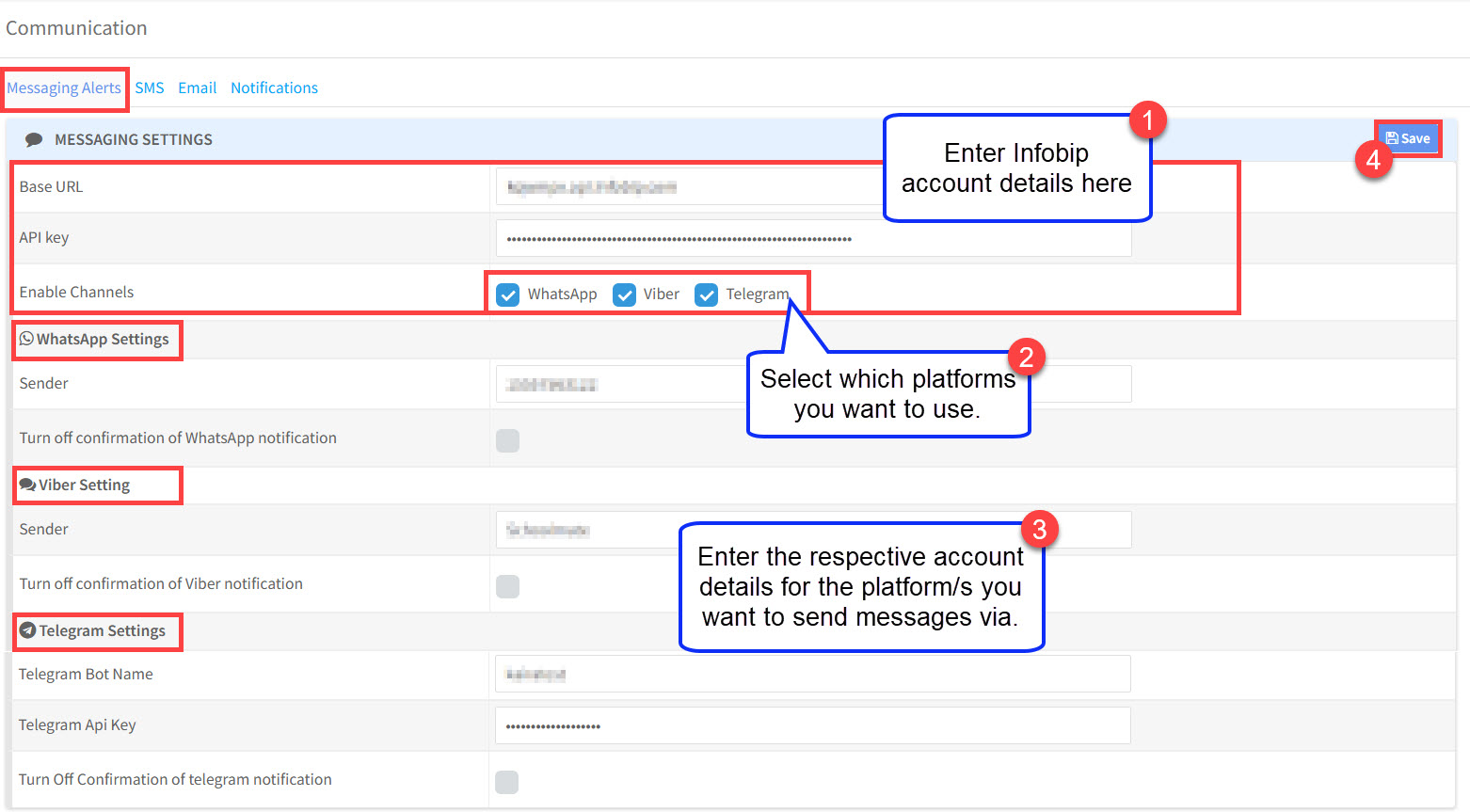
To send messages via the main messaging platforms, SchoolMate is integrated with Infobip, a leading communications platform. You will need to create an Infobip account to use these features. Costs vary depending on platform used, message volume etc.
You will also need to have an account with the messaging platform.
WhatsApp – To send group messages, you will need a WhatsApp Business account. Messages are sent as “Utility” type.
See WhatsApp pricing details: WhatsApp Business messaging rates
Viber – To send group messages, you will need a Viber Business Messages account. Messages are sent as “Transactional” type.
See Viber pricing details: Viber Business messaging rates
Telegram – Telegram uses a Bot system. Share your school’s Bot Name with students; they search for it in Telegram, tap on it, and share their contact details with your school. There are no per-message costs.
How to create a Telegram Bot: Telegram Bot setup guide

Email:
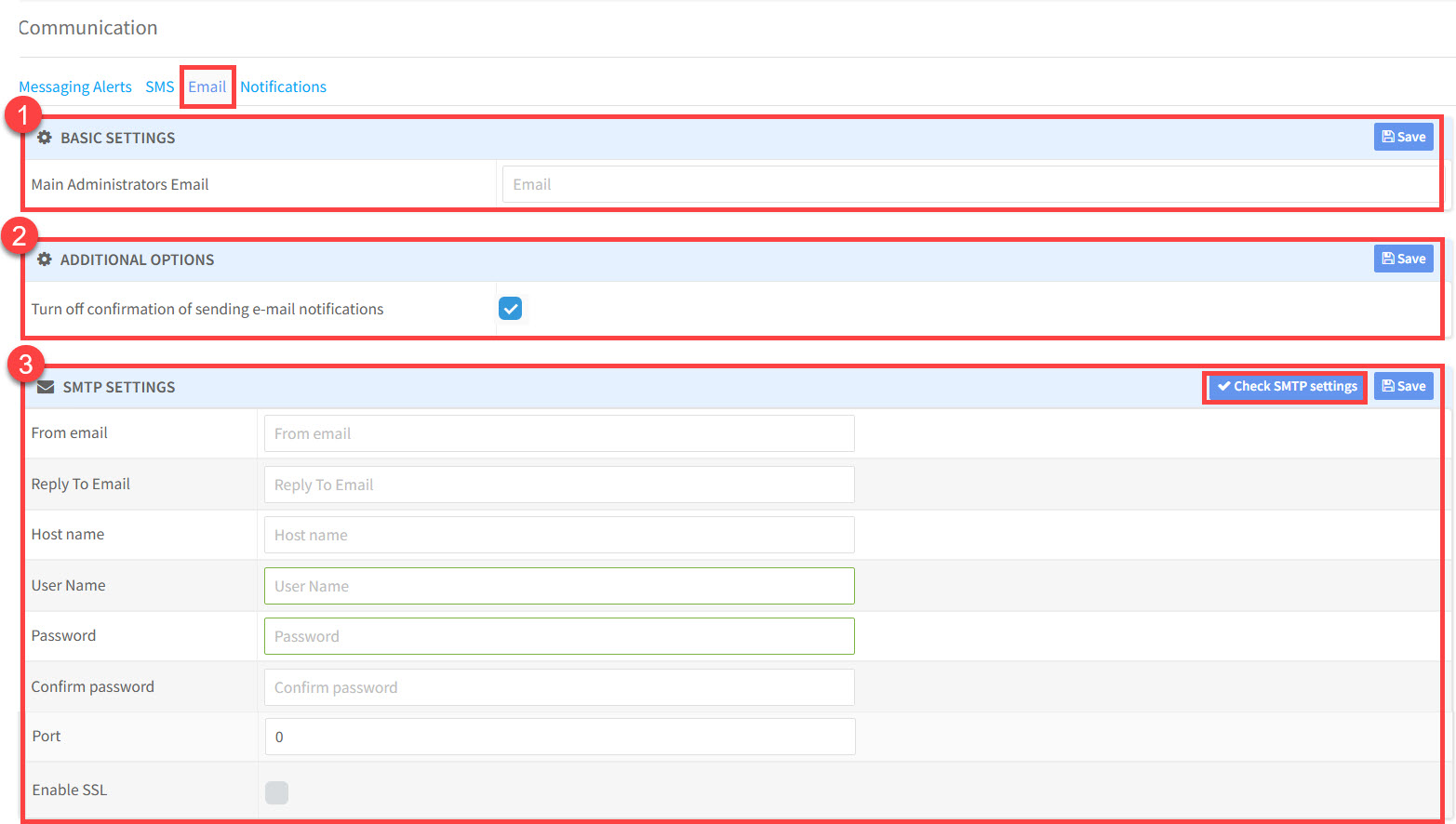
SchoolMate uses your email settings both for automatic system notifications (e.g. lesson changes) and for any emails you send manually. Configure the three sections below:
- Basic Settings – Enter your main admin email here for receiving emails.
- Additional Options – By default the system will wait for confirmation before sending email messages. Switching off this option will result in emails be sent automatically.
- SMTP Settings – Enter the email address you wish to send from, along with its SMTP server settings. Use the “Check “button to verify the settings work, and if they are ok click “Save”. Although this is the main email address you can over-ride this when sending emails. There is a tutorial on emails here.
System Messages:
System Messages are messages sent from within SchoolMate to users’ SchoolMate accounts. They appear when a student or teacher logs in to their account.
System Messages can also be delivered as push notifications directly to students’ smartphones, ensuring they are seen even when the recipient is not logged in.
There is a tutorial on System Messages here.
Notifications:
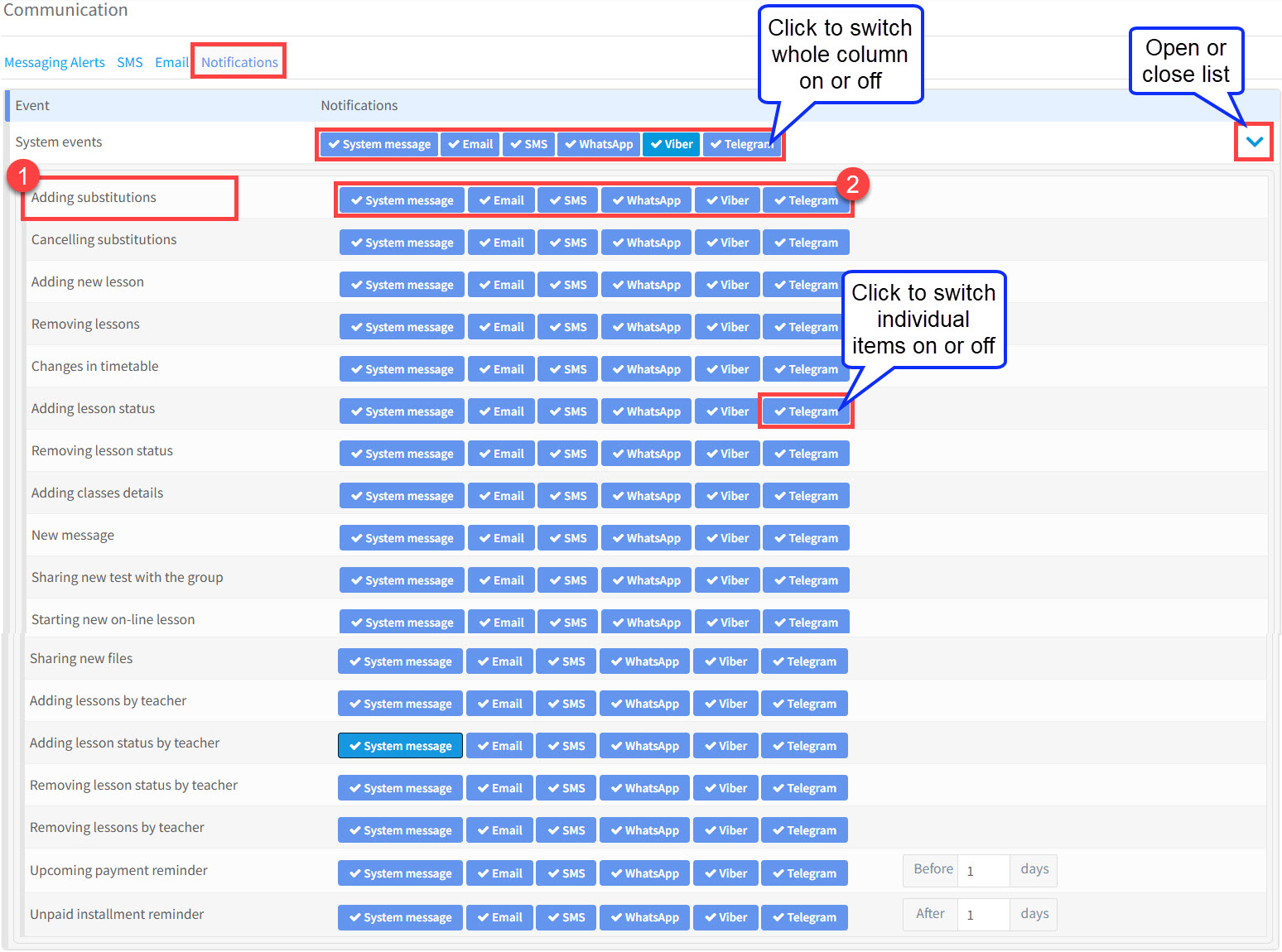
This is a list of possible actions that can happen in the system and what notifications to teachers and students should be sent if that action takes place.
- If this happens
- Send this type of message. You will be asked to confirm that you want to send it before it is sent.