Teacher Payments & Settlements – Overview
The Settlements card allows you to calculate how much a teacher is owed for a selected time period. From there, you can create either a Bill (linked to an employment contract) or register an Invoice (issued by the teacher).
Settlements Card:
First you need to decide which teacher and for what period of time you want to calculate their payment due.
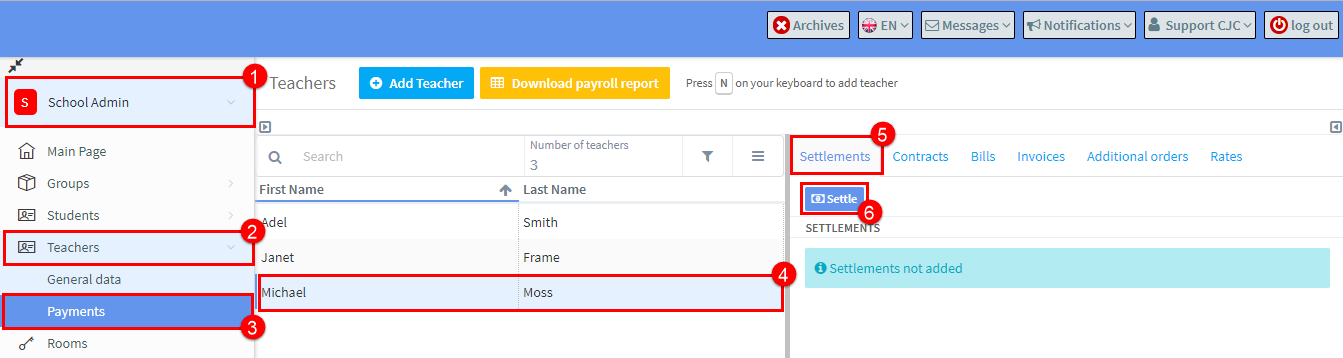
- Go open “School Admin” menu.
- Click “Teachers”.
- The teachers menu will expand and then click “Payments”.
- Select a teacher.
- Select the “Settlements” card.
- Click “Settle”.
After you click “Settle” enter:
- The dates range for the settlement.
- The settlement type.
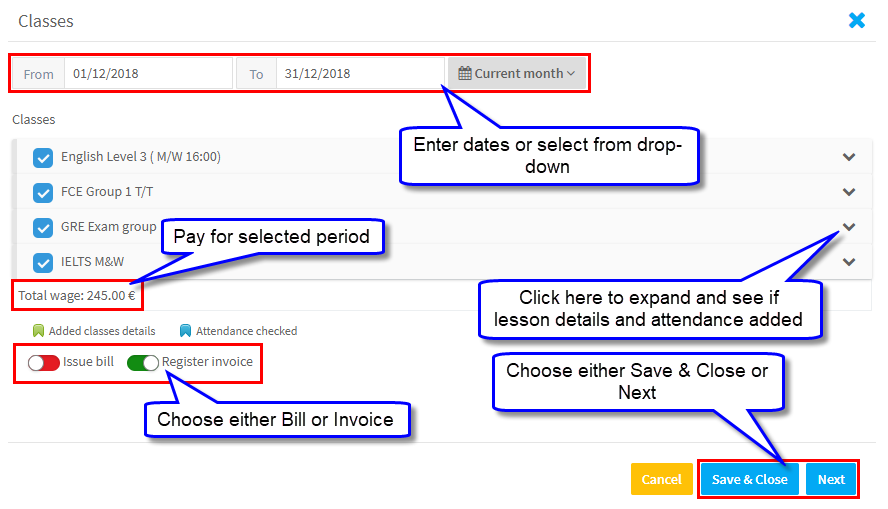
What is the difference between “Save & Close” and “Next”?
If you choose “Save & Close”, the system will just calculate the amount to be settled. Later by clicking on the relevant icon you can finish creating a Bill or registering an Invoice.
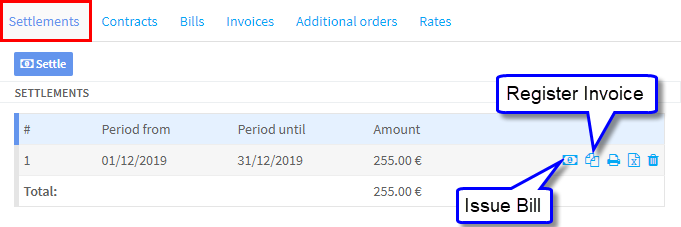
If you click “Next”, the system will show the settlement as either a Bill or Invoice in SchoolMate.
What is the difference between a bill and an invoice?
A Bill can be connected to an employment contract that the teacher may have with the school. In addition, deductions for tax, health and social security can be deducted from the payment.
With an invoice you are receiving an invoice from the teacher. The amount of the invoice should agree with the settlement figure. You then enter the teacher’s invoice details into the system.
Contracts Card:
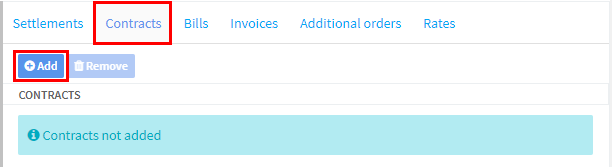
On this card you can add contracts for work that will be used in the teacher’s settlement. These agreements can be for long term employment, task related or anything else you wish to create.
To add a contract go to the Contracts card and click “Add”:
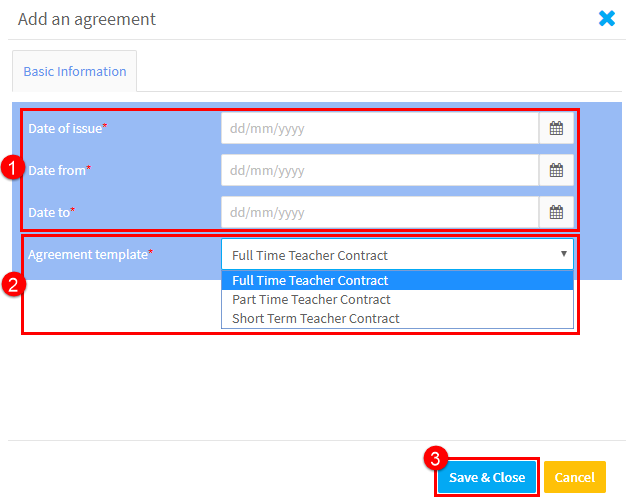
Now select the agreement that applies from the drop-down:
- Enter the relevant dates.
- Select the agreement that applies.
- Click “Save & Close”.
Bills:
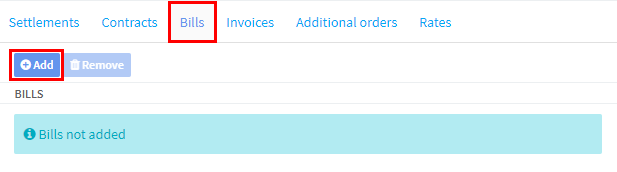
Bills are created that show the amount earned by a teacher and any deductions (if required) that apply to these earnings.
To add a bill go to the Bills card and click “Add”:
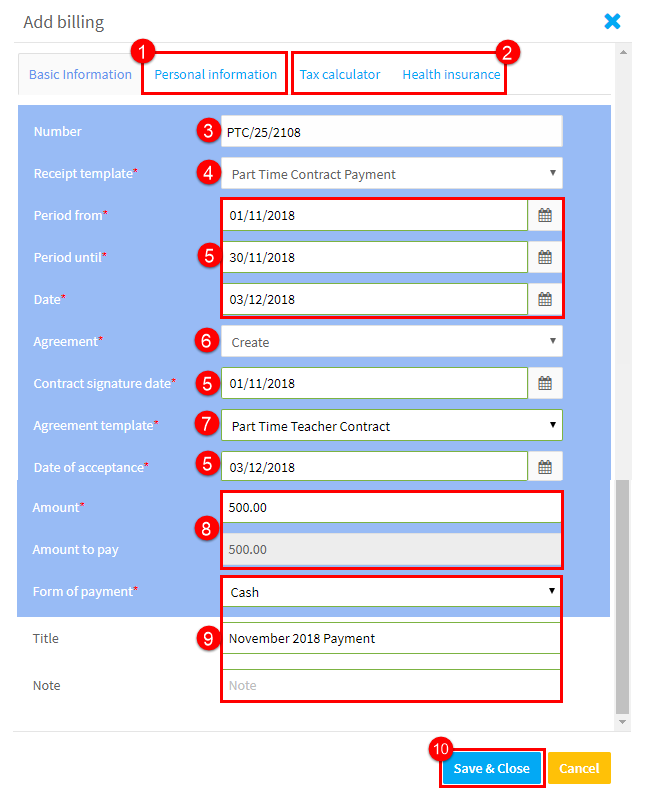
And the card below will appear.
- The information here comes from the Settlements Card of the teacher and is used in the billing document.
- If you need to make deductions for tax, health and social payments, enter the rates here.
- Give the bill a number.
- Select the template to use for the payment.
- Enter the relevant dates.
- You can choose a previously used agreement or let the system use the one selected in 7.
- Select the agreement to use.
- Enter the gross amount. If there are any rates entered in 2, then the amount to pay will be recalculated.
- Select payment method and give the document a title.
- Click “Save & Close”.
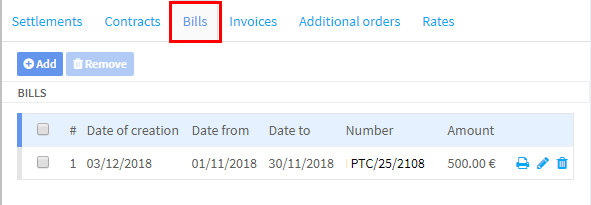
After you have created the bill, it will appear on the card:
Invoices:
If we choose this option, then we enter the details of the invoice which the teacher has handed to the school for payment.
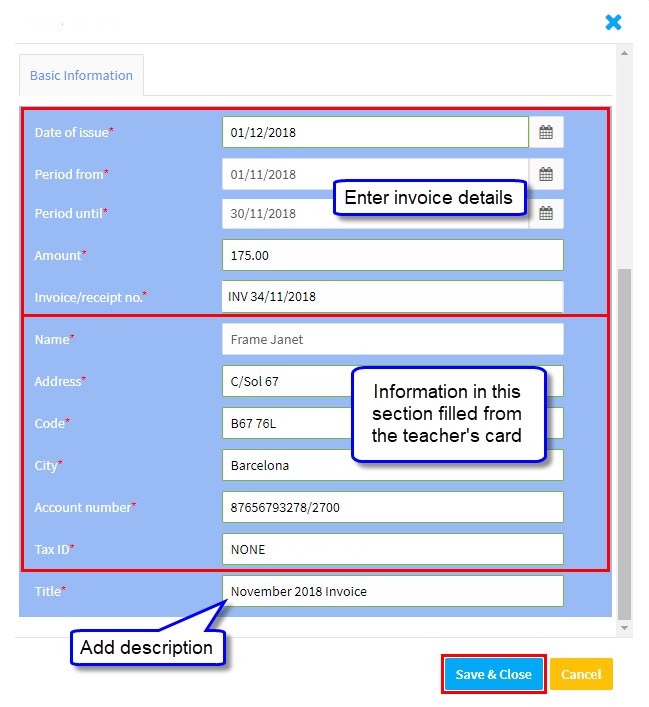
After you click “Save & Close” the invoice details will be listed on the Invoice Card:
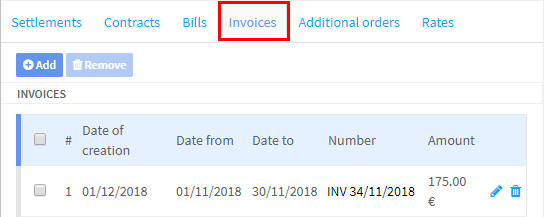
You can also register invoices for teachers for other items than those on the Settlement card by clicking “Add.”
Additional Orders:
This card allows to add other items to the teacher’s pay such as travel time. To add an item go to the Additional Orders card and click “Add”:
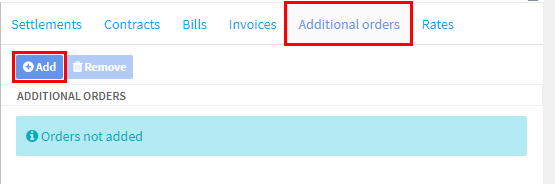
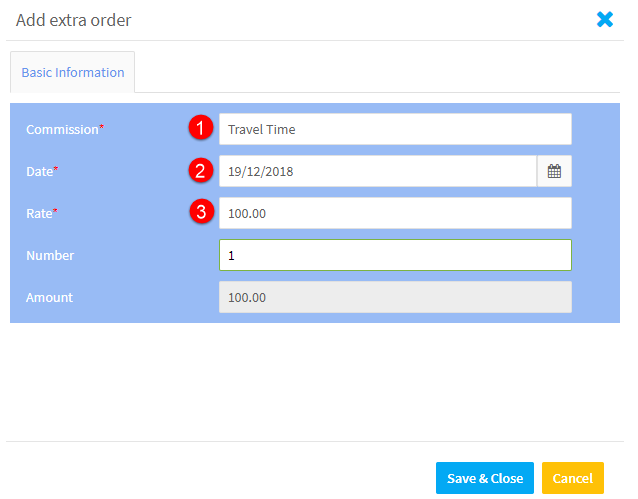
Fill in the card that appears:
- Give the item a name.
- Give a date. Settlements for that date will then include the item.
- Enter the amount.
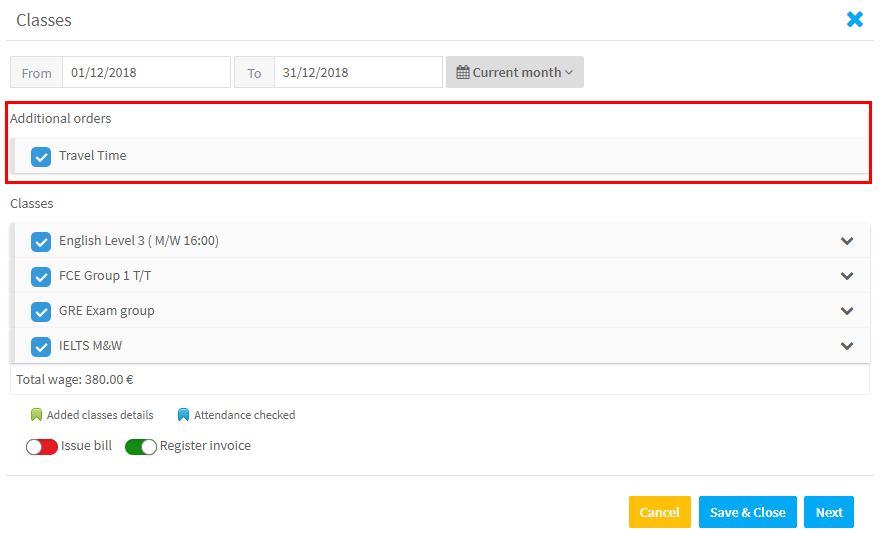
Settlements that cover that date will then include the Additional Order:
Rates:
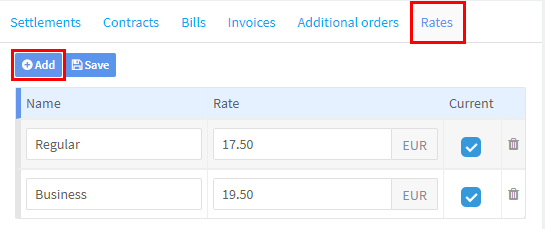
This shows the teacher’s pay rates. Rates can be added or deleted here or via the teacher’s profile card: