Rooms
This is where we add the school’s classrooms for lessons to be placed in.
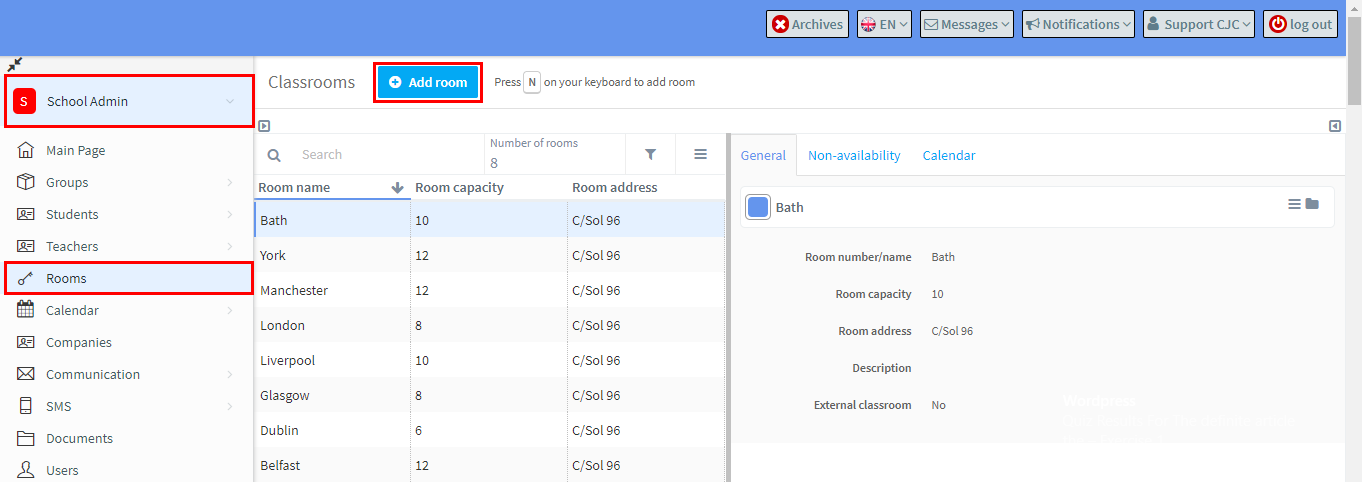
Go to School Admin, Rooms and click Add room.
Fill in the room details in the card that appears:
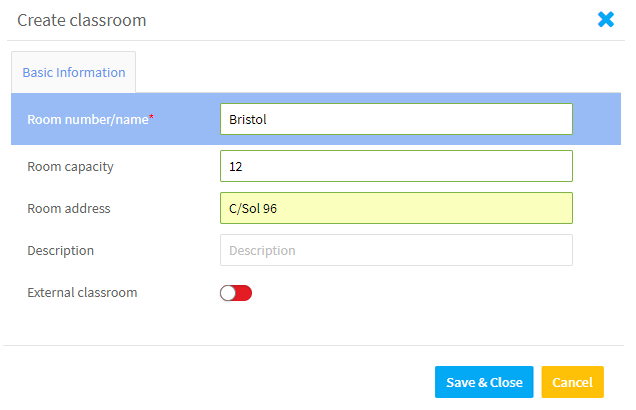
After you click “Save & Close” the room will be created.
General Card:
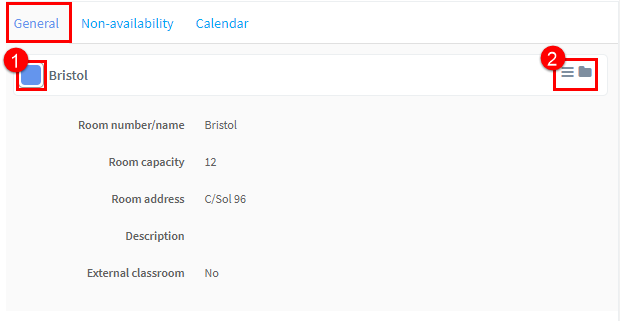
This contains the room’s details:
- You can give a room a different colour to distinguish between them in your calendars.
- Edit details and archive room.
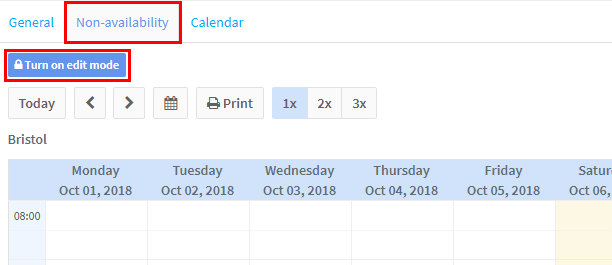
Non-Availability Card:
If you want to make the room non-available for teaching, click “Turn on edit mode” and enter details.
Calendar Card:
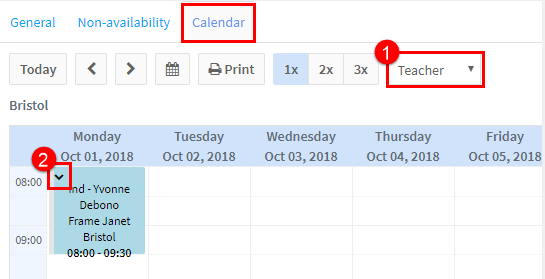
This shows lessons scheduled in the classroom. You can change the dates and scale by using the various buttons.
- This allows you to change the lessons according to the teacher, language and type of classes. You will need to have coloured these in Settings.
- Here you can see what happened in the lesson and add attendance.